Creating Your Account
To use POSVERSE, you first need to create an owner account. This links your business to the system and lets you set up tills, staff, and menus. After you sign up, our team will verify your account—this usually doesn't take long. Once verified, you can sign in and start configuring everything.
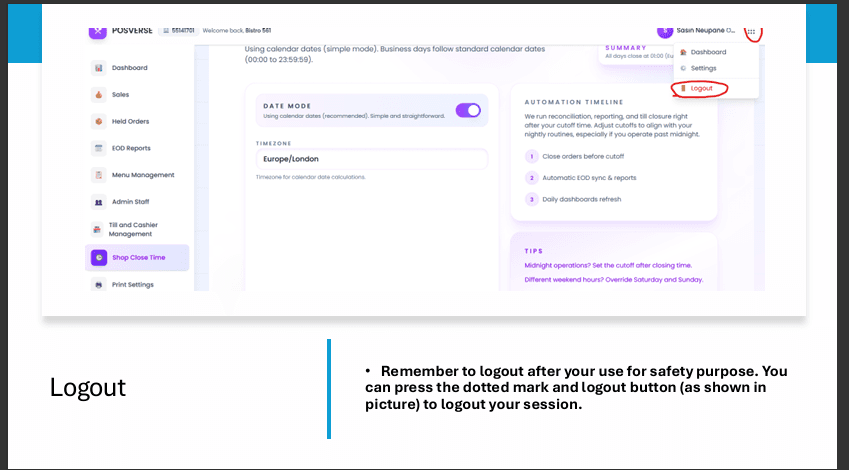
Click Sign up on the website
Go to the POSVERSE website and find the Sign up button (often in the top-right or on the main page). Click it to open the registration form.
Fill in your business and account details
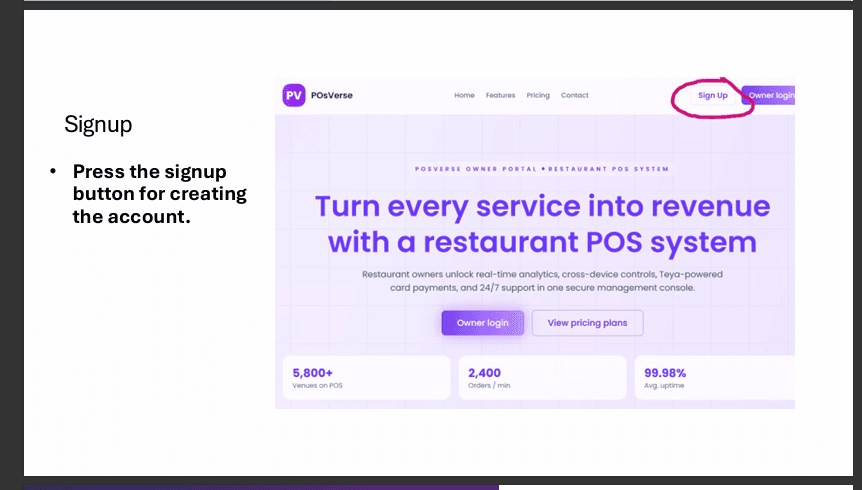
Enter all required information: your business name, owner name, email, registration number (if applicable), and a password. Make sure your email is correct—you'll use it to sign in. When everything is filled in, press Create account.
Wait for verification
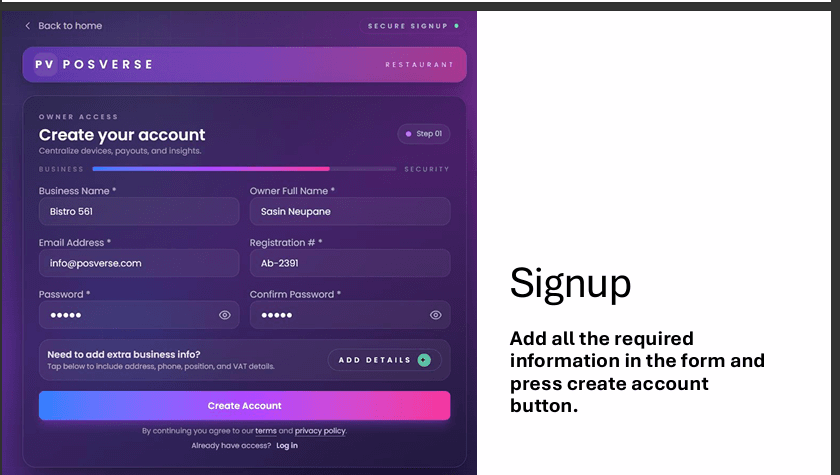
After submitting, you'll see a screen saying Verification in progress. Our team will review your account. Once approved, you can use Back to Login to sign in. If you don't hear back within a reasonable time, contact support.
Signing In
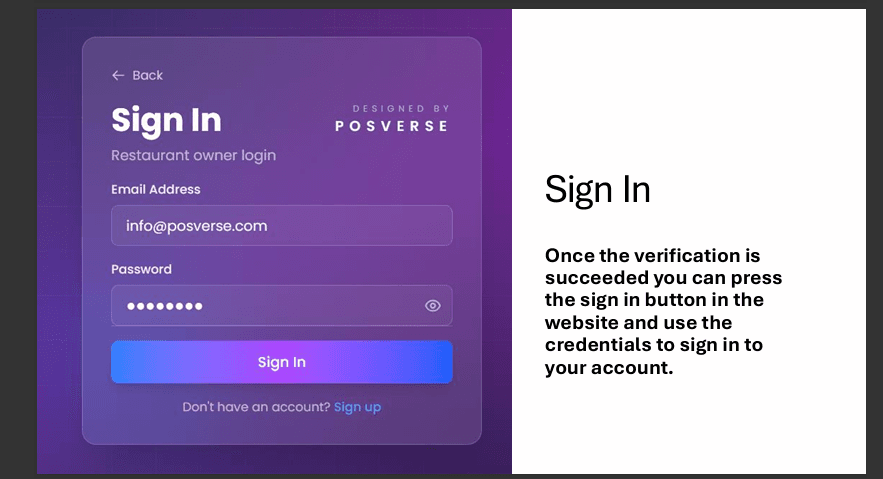
Once your account is verified, you can sign in anytime. Click Sign in on the website, then enter the email and password you used when creating your account. You'll be taken to your owner dashboard where you can manage tills, staff, menu, and more.
Till and Cashier Management
A till represents a physical point of sale—e.g., a counter, a bar, or a drive-through window. You create tills and assign cashiers to them. Cashiers log in to a specific till, so each till tracks its own transactions. You can create as many tills as you need for your business.
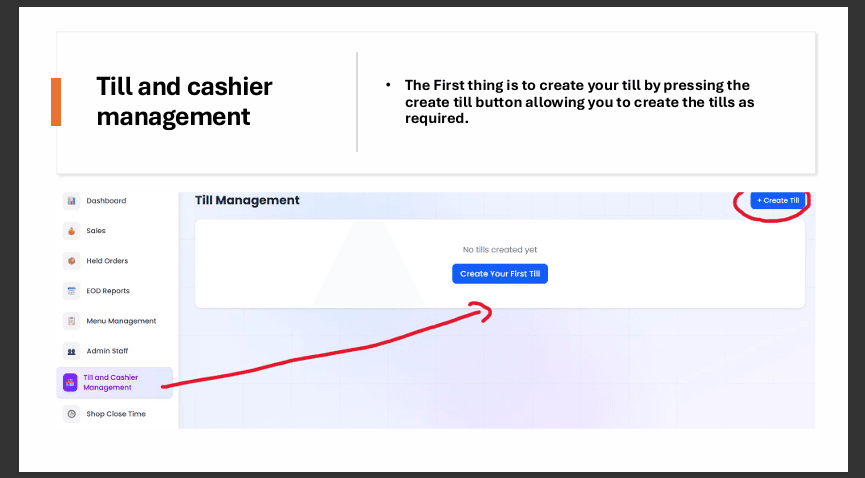
Create your first till
Go to the Till Management section. If you don't have any tills yet, you'll see a Create Your First Till or Create till button. Click it to open the till creation form.
Fill in till details
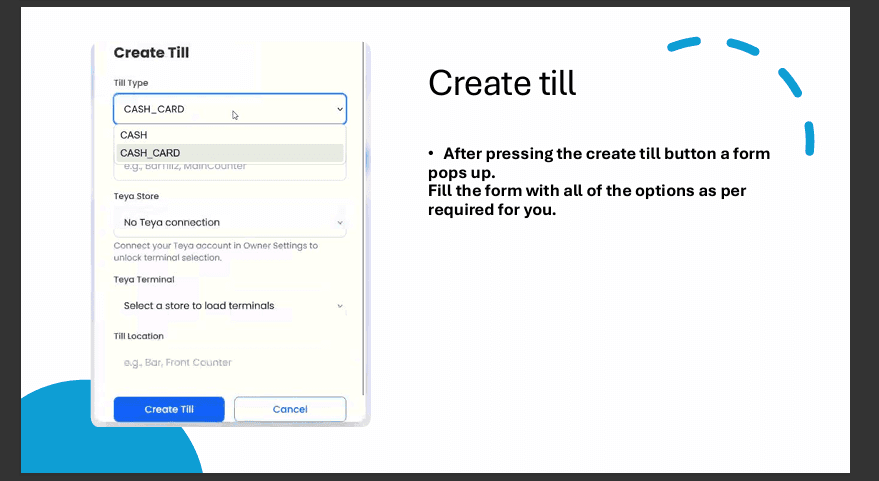
In the form, enter:
- Till Type — Choose CASH (cash only) or CASH_CARD (cash and card).
- Till Name — e.g., "Front Counter" or "Bar".
- Till Location — A short description of where this till is.
- Teya options — If you use Teya for payments, configure those settings here.
When done, press Create till.
Add cashiers to the till
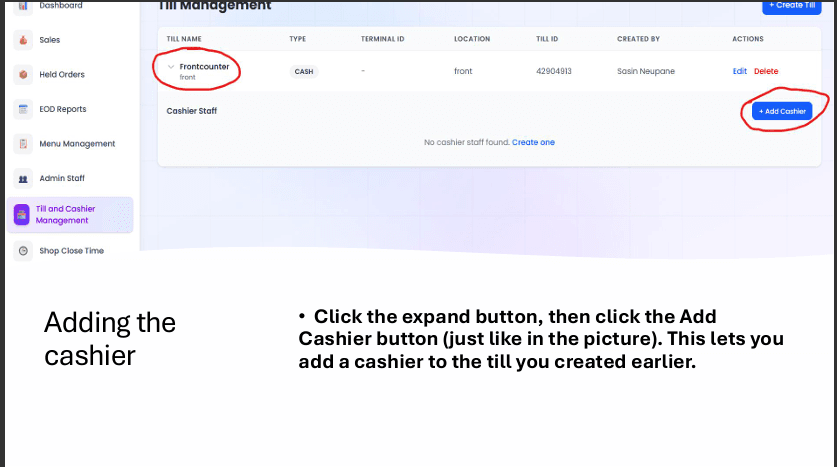
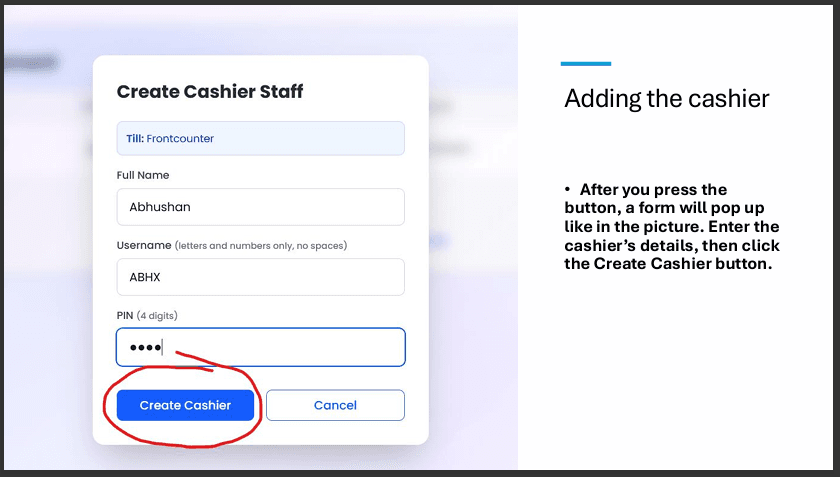
After creating a till, expand its row and click + Add Cashier. A form will appear. Enter the cashier's Full Name, Username (letters and numbers only, no spaces), and PIN (4 digits). Press Create Cashier. You can add multiple cashiers to each till.
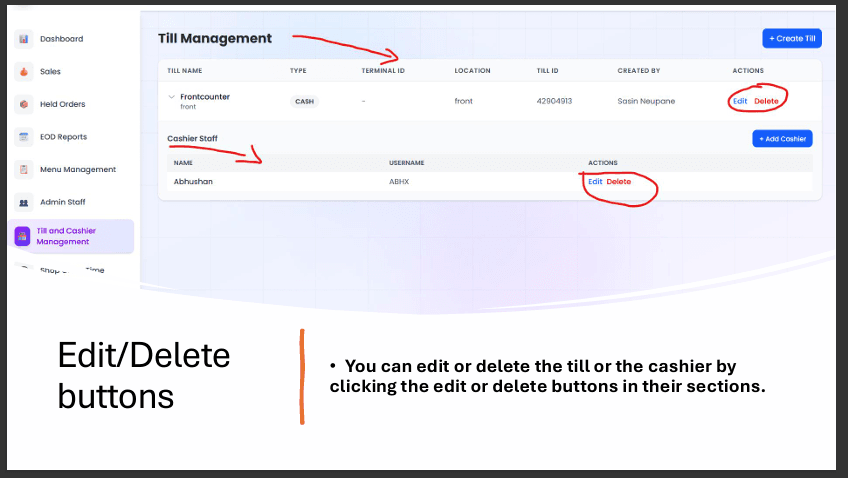
Edit or delete tills and cashiers
Each till and cashier has Edit and Delete buttons in the ACTIONS column. Use Edit to change details; use Delete to remove a till or cashier. Be careful with Delete—it can affect historical data.
Creating Admin Staff
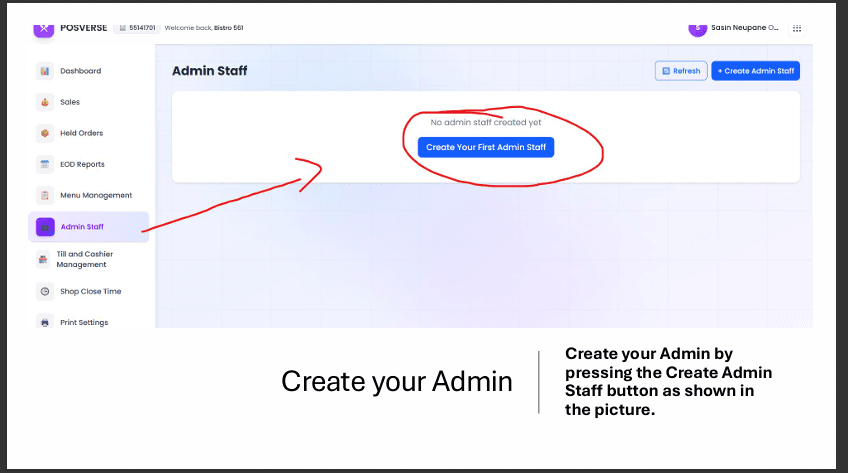
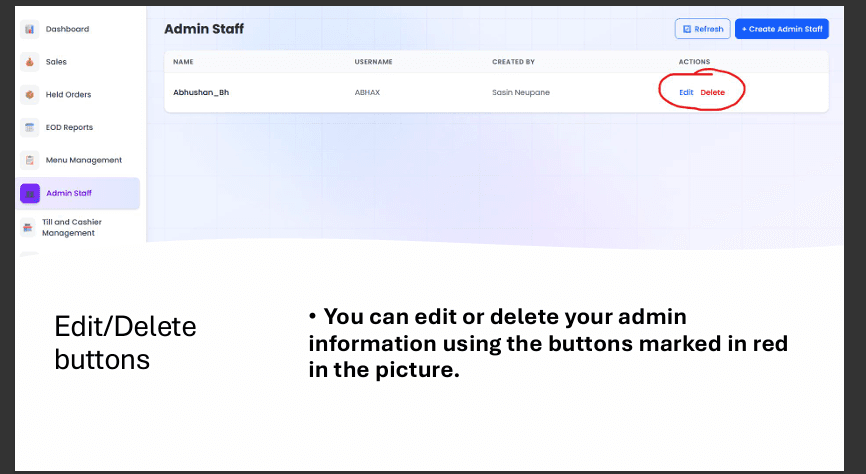
Admin staff have higher access than cashiers—they can manage settings, view reports, and often perform actions that cashiers cannot. Create admins for managers or supervisors. Go to the Admin Staff section and click Create Admin Staff or Create Your First Admin Staff.
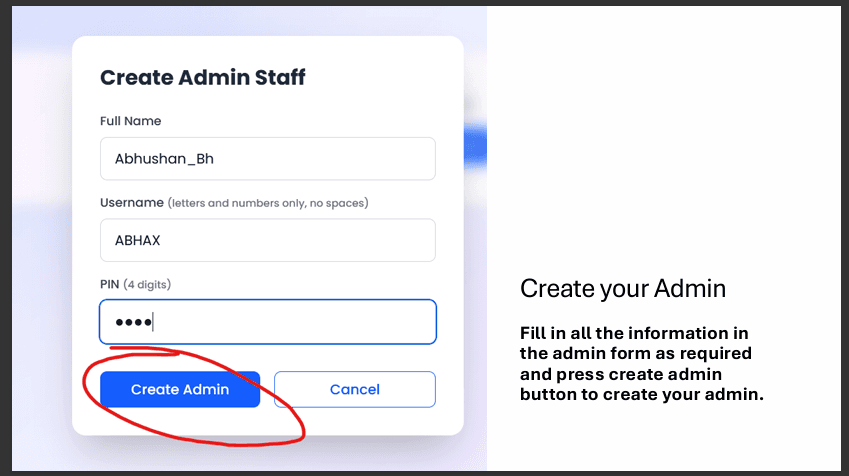
Fill in the form with Full Name, Username, and PIN, then press Create Admin. You can edit or delete admins using the Edit and Delete buttons in the ACTIONS column.
Adding Your Menu
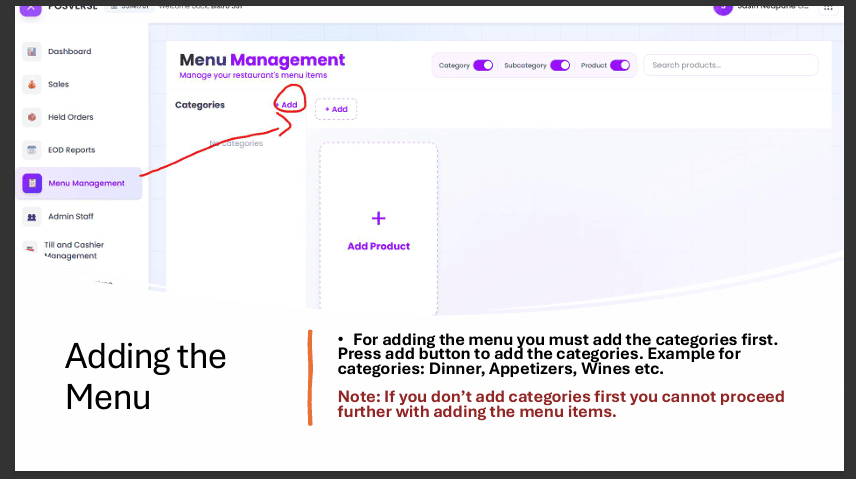
Your menu is organised in a hierarchy: Categories (e.g., Dinner, Drinks) → Subcategories (e.g., Soups, Mains) → Products (e.g., Beef Barley Soup, Chicken Noodle). You must add categories first, then subcategories, then products. Cashiers see products grouped under subcategories and categories on the dashboard.
Order matters
Add categories
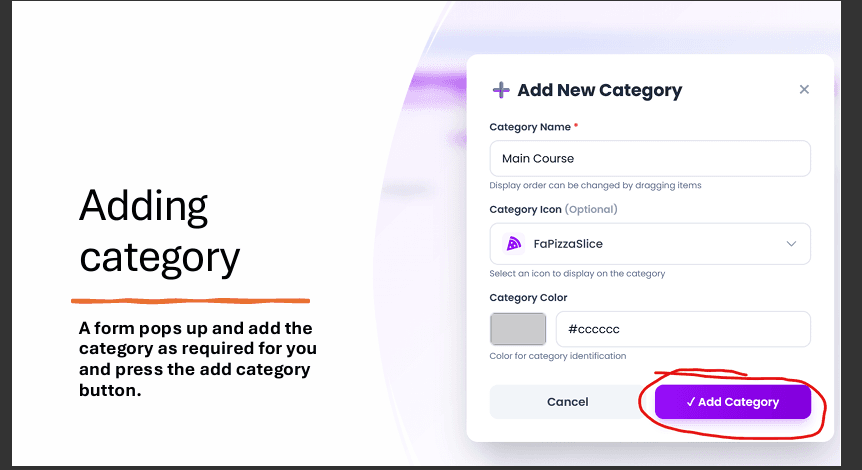
Go to Menu Management. Next to Categories, click the + Add button. A form will appear. Enter the category name (e.g., "Dinner", "Appetizers", "Wines"). You can optionally add an icon and colour. Press Add Category.
Add subcategories
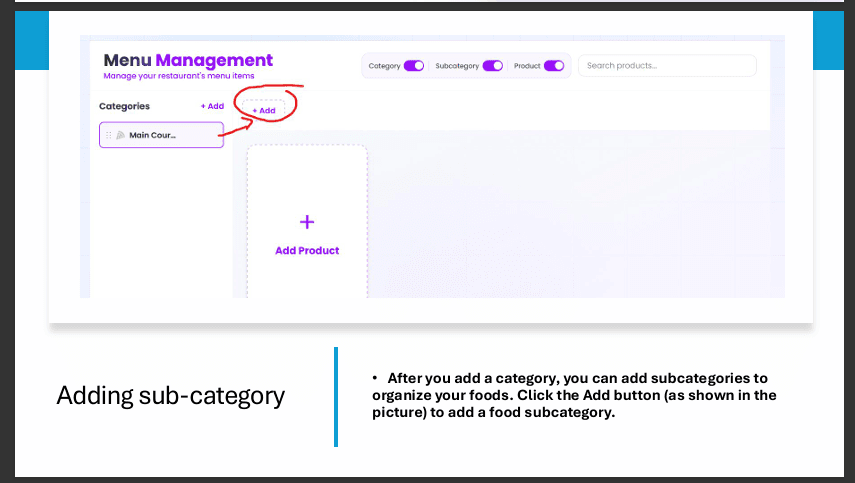
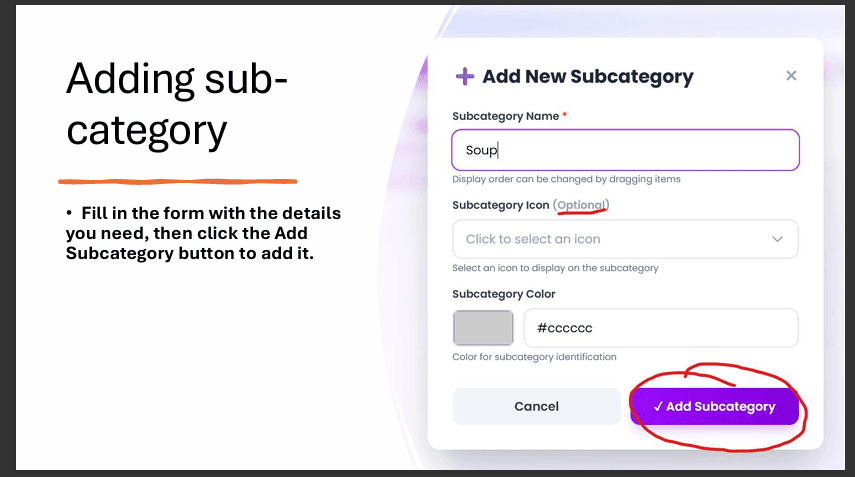
After creating a category, click the + Add button next to that category to add a subcategory (e.g., "Soup", "Salads"). Fill in the subcategory name, optional icon and colour, then press Add Subcategory.
Add products
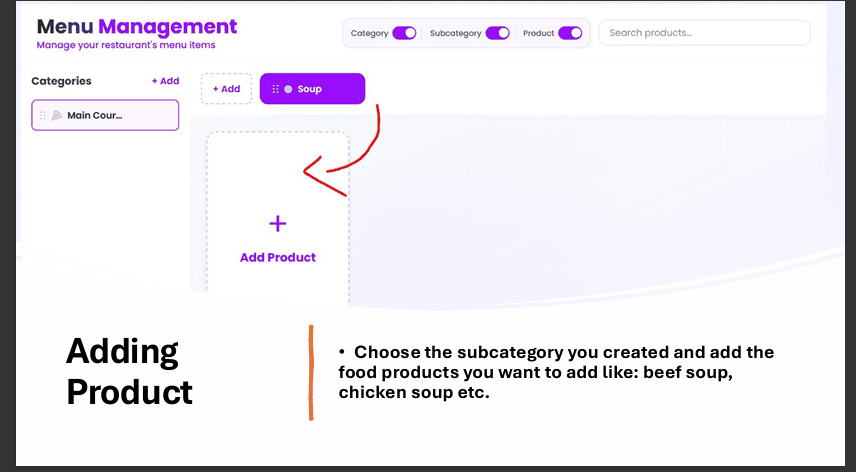
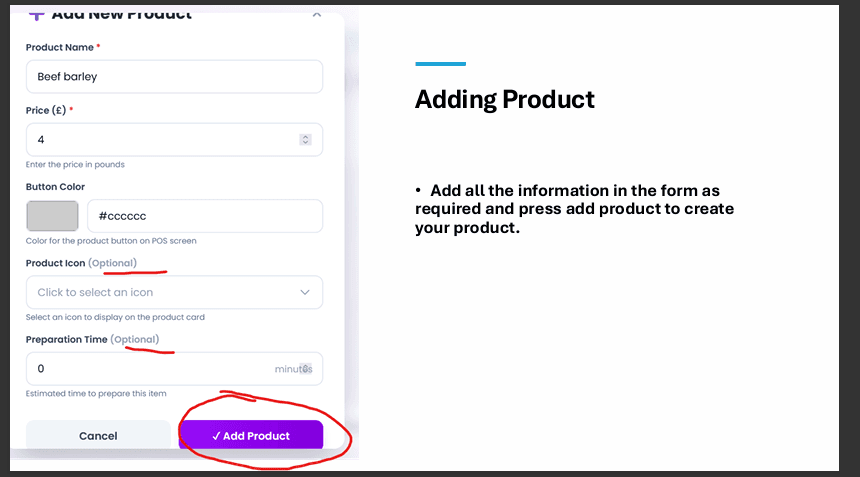
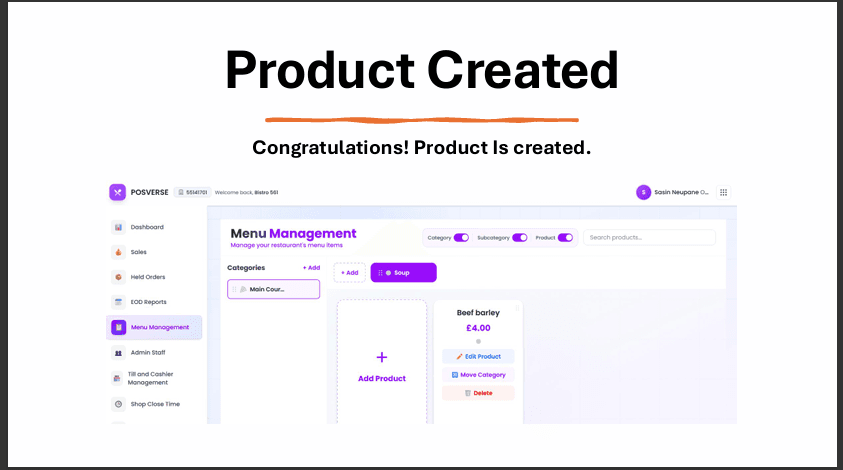
Select the subcategory where you want to add items (e.g., Soup). Click the Add Product area. Fill in the product name (e.g., "Beef Barley Soup"), price, and optionally button colour, icon, and preparation time. Press Add Product. The new product will appear in your menu.
Strict Control Mode
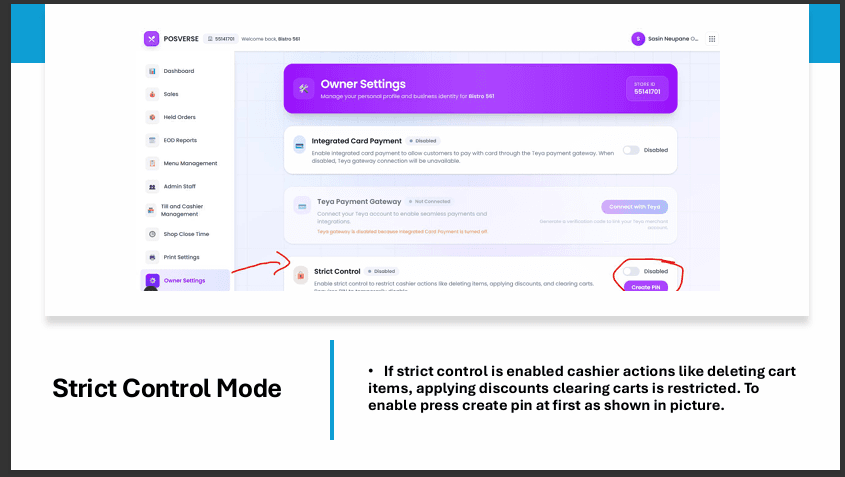
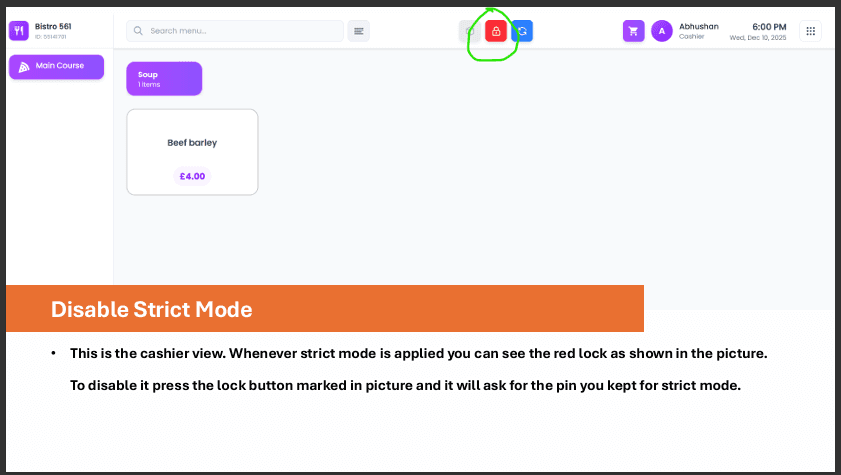
Strict Control restricts what cashiers can do—they cannot delete cart items, apply discounts, or clear carts without your approval. This reduces errors and unauthorised changes. When enabled, cashiers see a red lock icon. They can temporarily disable strict mode by entering a PIN you create. Only you (the owner) set this up.
Create your Strict Control PIN
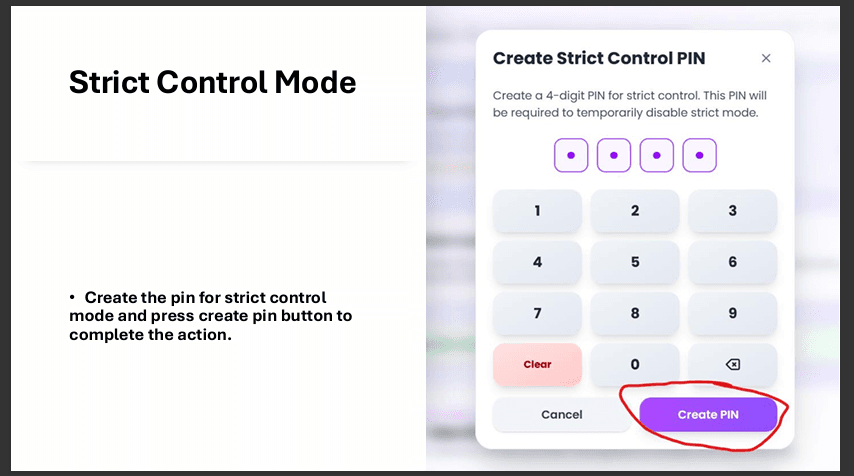
Go to Owner Settings and find the Strict Control section. Click Create PIN. In the modal, enter a 4-digit PIN. This PIN is used when a cashier needs to temporarily disable strict mode (e.g., to fix a mistake). Remember it—you may need to share it with trusted staff. Press Create PIN to save.
Enable Strict Control
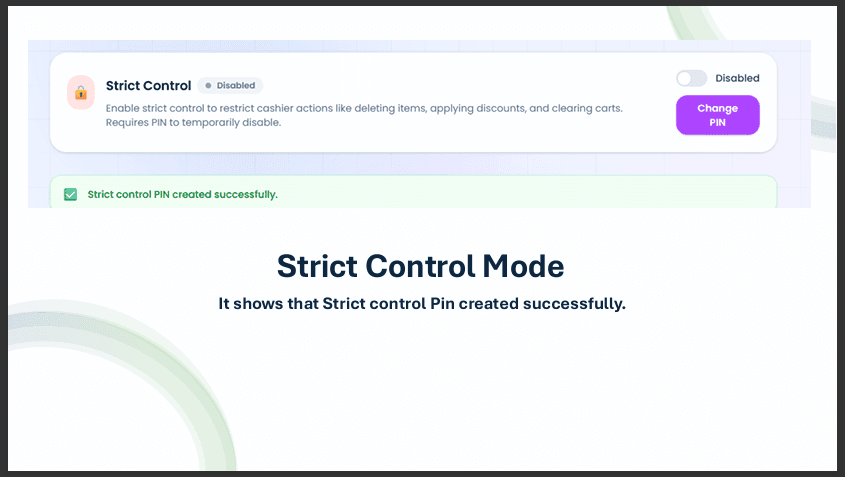
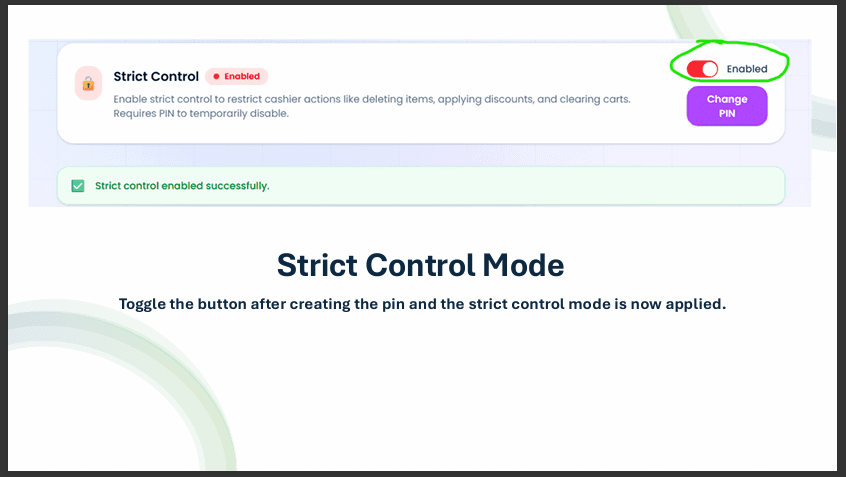
After creating the PIN, you'll see "Strict control PIN created successfully." Toggle the Strict Control switch to Enabled. You'll see "Strict control enabled successfully." Cashiers will now see the red lock and have restricted actions.
How cashiers disable strict mode
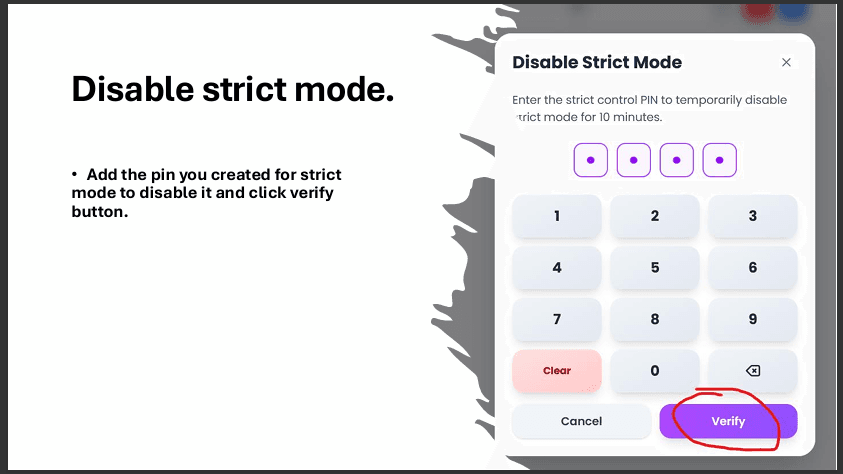
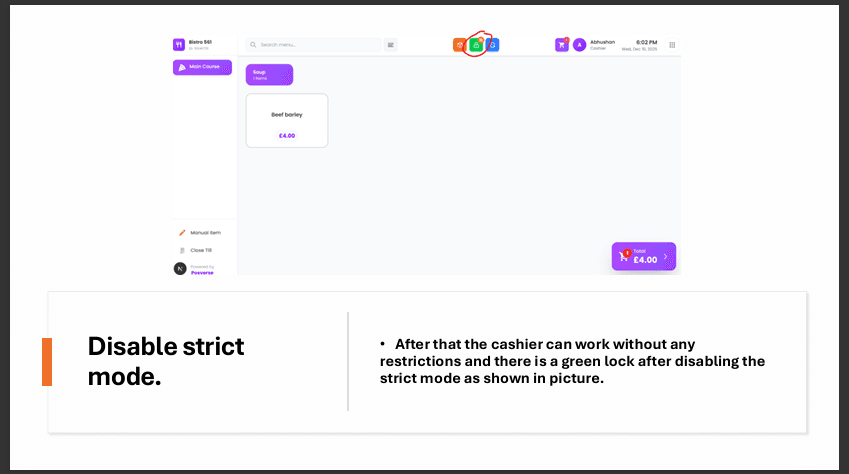
When strict mode is on, cashiers see a red lock in the top bar. To temporarily disable it (e.g., to delete an item by mistake), they click the lock, enter the PIN you created, and press Verify. A green lock means strict mode is disabled for that session. They can work without restrictions until they log out or you re-enable it.
Sales Page and Refunds
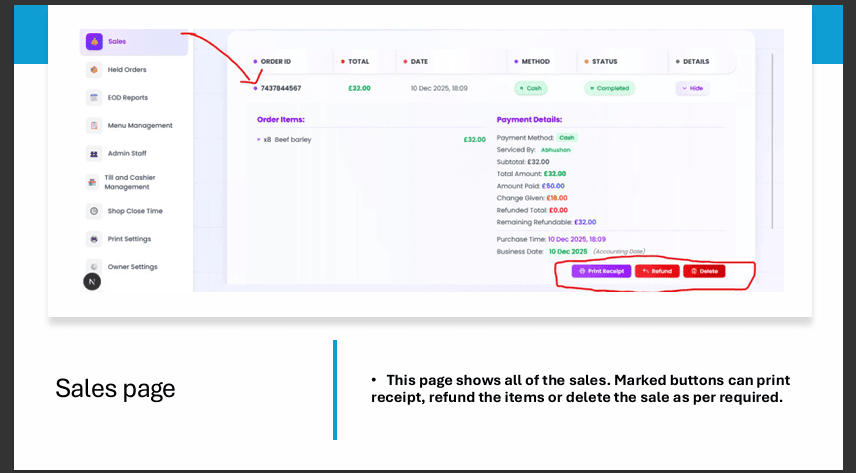
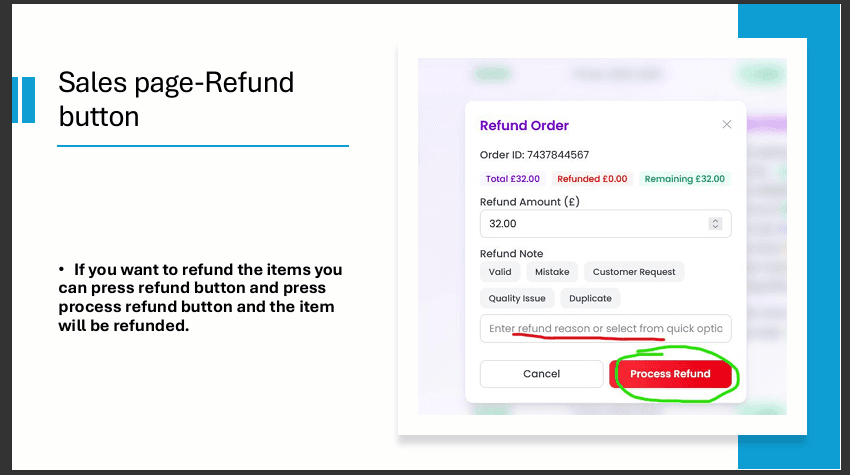
The Sales page lists all transactions. For each sale you can Print receipt, Refund (partially or fully), or Delete the sale (use with caution). Refunds require a reason or note for record-keeping.
Processing a refund
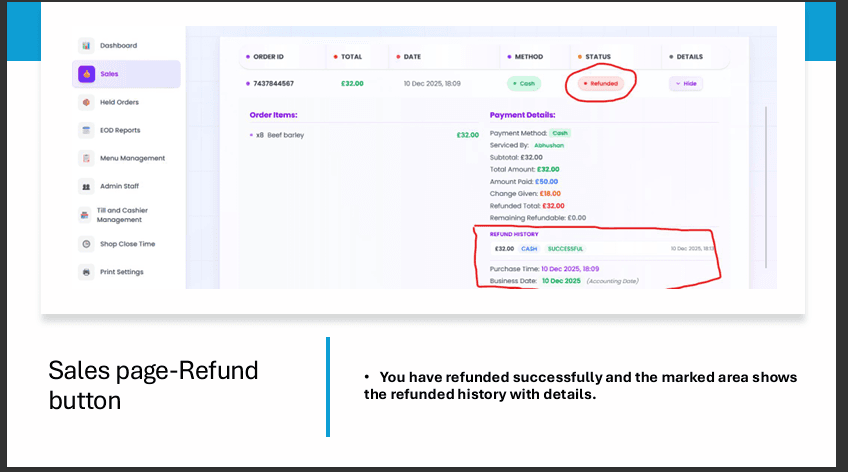
Click Refund on the sale. Enter the refund amount (or choose full refund) and a refund note or quick-option reason. Press Process Refund. The sale status will change to Refunded, and the refund history will show the details. This helps with accounting and dispute resolution.
End-of-Day (EOD) Reports
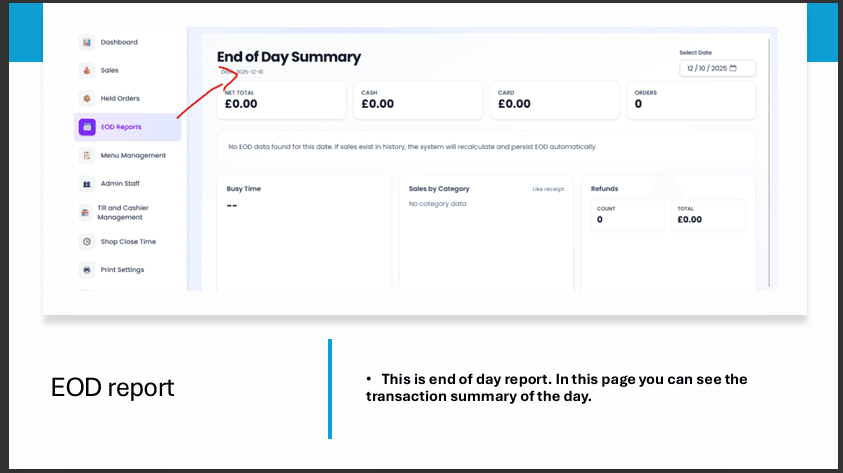
The EOD Reports section gives you a summary of the day's transactions. You'll see Net total, Cash vs Card breakdown, number of Orders, busiest times, sales by category, and any refunds. Use this to reconcile your till, spot trends, and prepare for the next day. Cashiers can also print an EOD report from their till before closing.
Logging Out
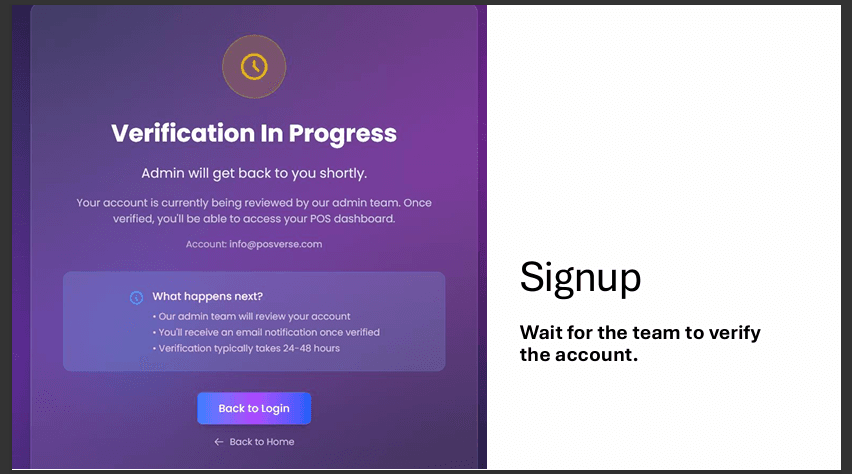
When you're done, always log out for security. Click the three-dot menu (⋯) next to your name in the top bar, then select Logout. This ends your session and ensures no one else can access your account from that device.