
Logging In to Your Till
Before you can take orders, you need to log in to the cashier system. You'll need your Store ID (provided by your manager or owner), the till you're using (e.g., "Front counter" or "Bar"), your staff profile, and your 4-digit PIN. Follow these steps carefully.
Enter your Store ID and select the till
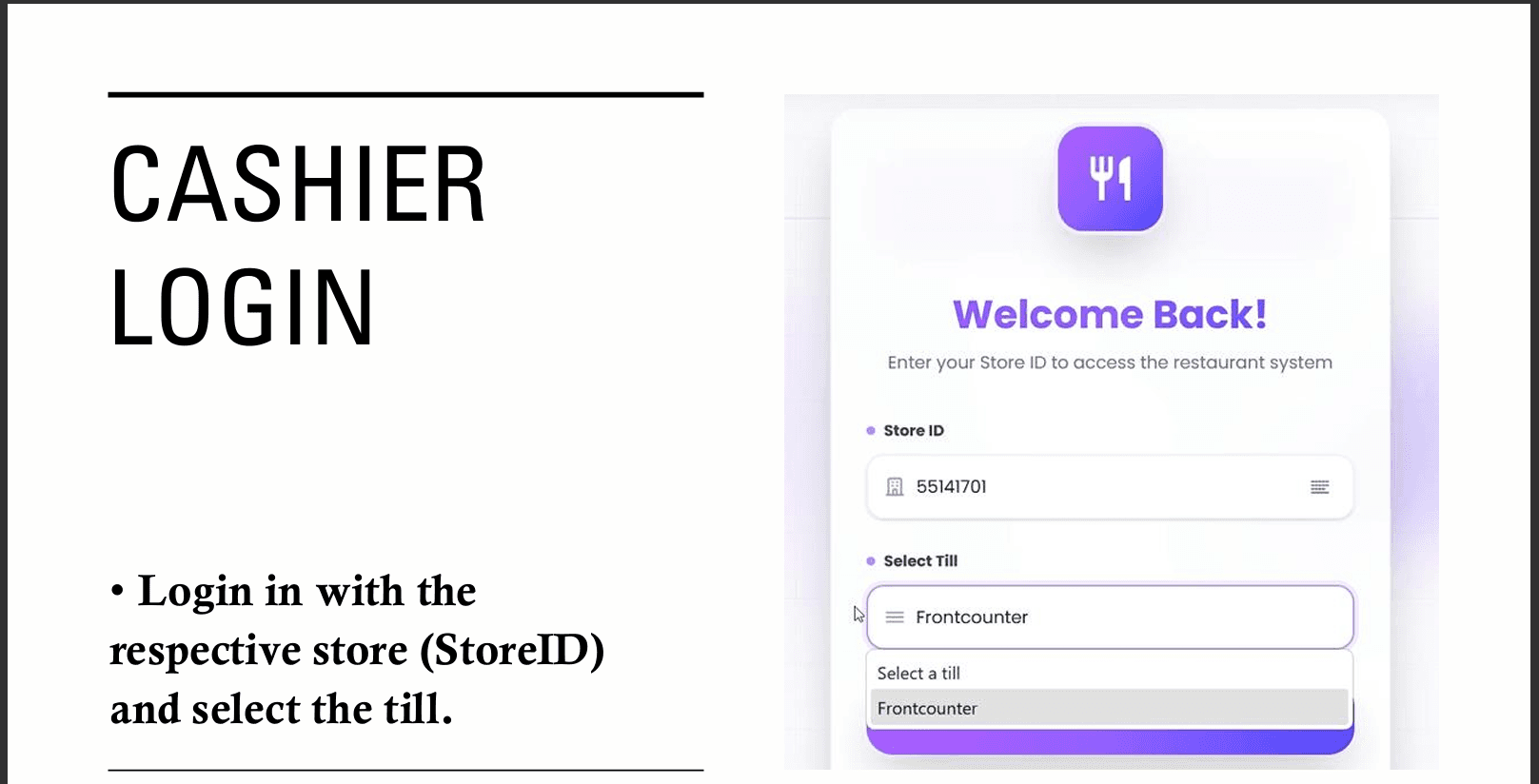
On the login screen, you'll see a field for Store ID and a dropdown to select your Till. Your manager will give you the Store ID—it uniquely identifies your business. The Till dropdown lists all tills in your store (e.g., Front Counter, Drive-through, Bar). Pick the till you'll be working at.
Select yourself and enter the till PIN
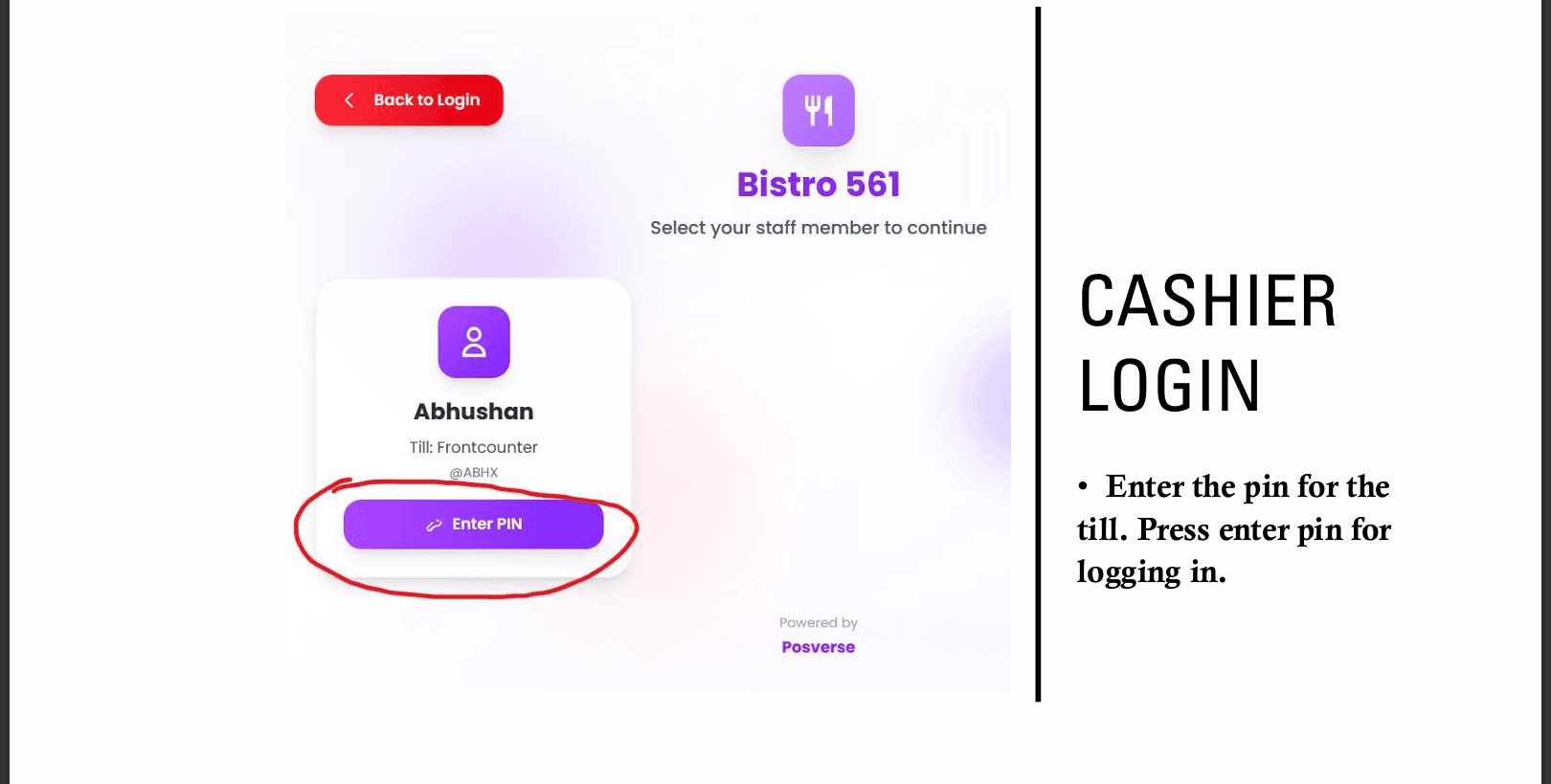
After selecting the till, you'll see a list of staff members who are assigned to that till. Click on your name. Then you need to enter the till PIN—this is a 4-digit code that unlocks the till for use. Your manager sets this. Once you've entered it, press Enter PIN.
Enter your personal PIN and log in
A dialog will appear asking for your personal 4-digit passcode. This is different from the till PIN—it's your own secret code that identifies you. Enter it and press Login. You'll be taken to the cashier dashboard.
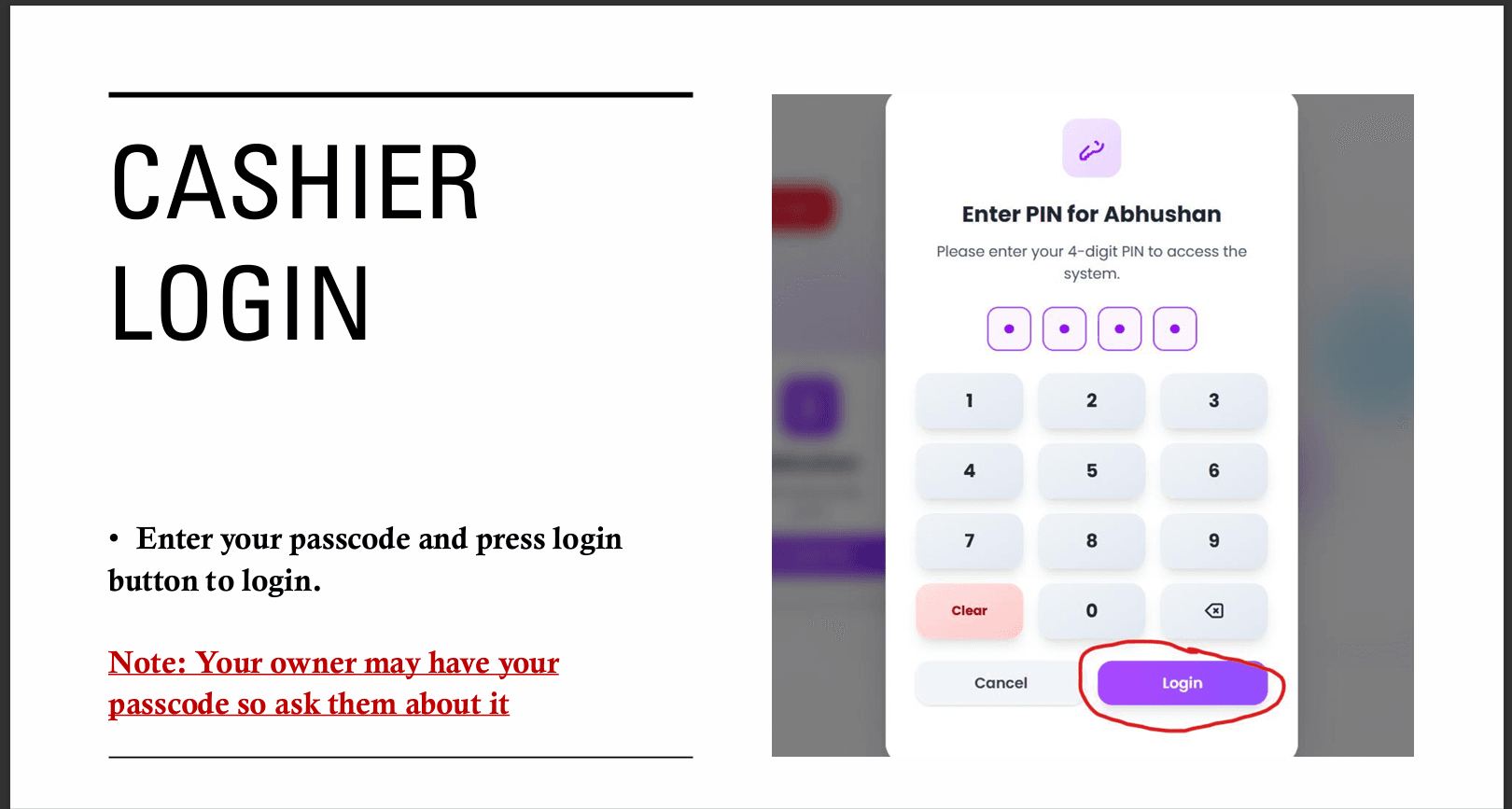
Don't know your PIN?
The Cashier Dashboard
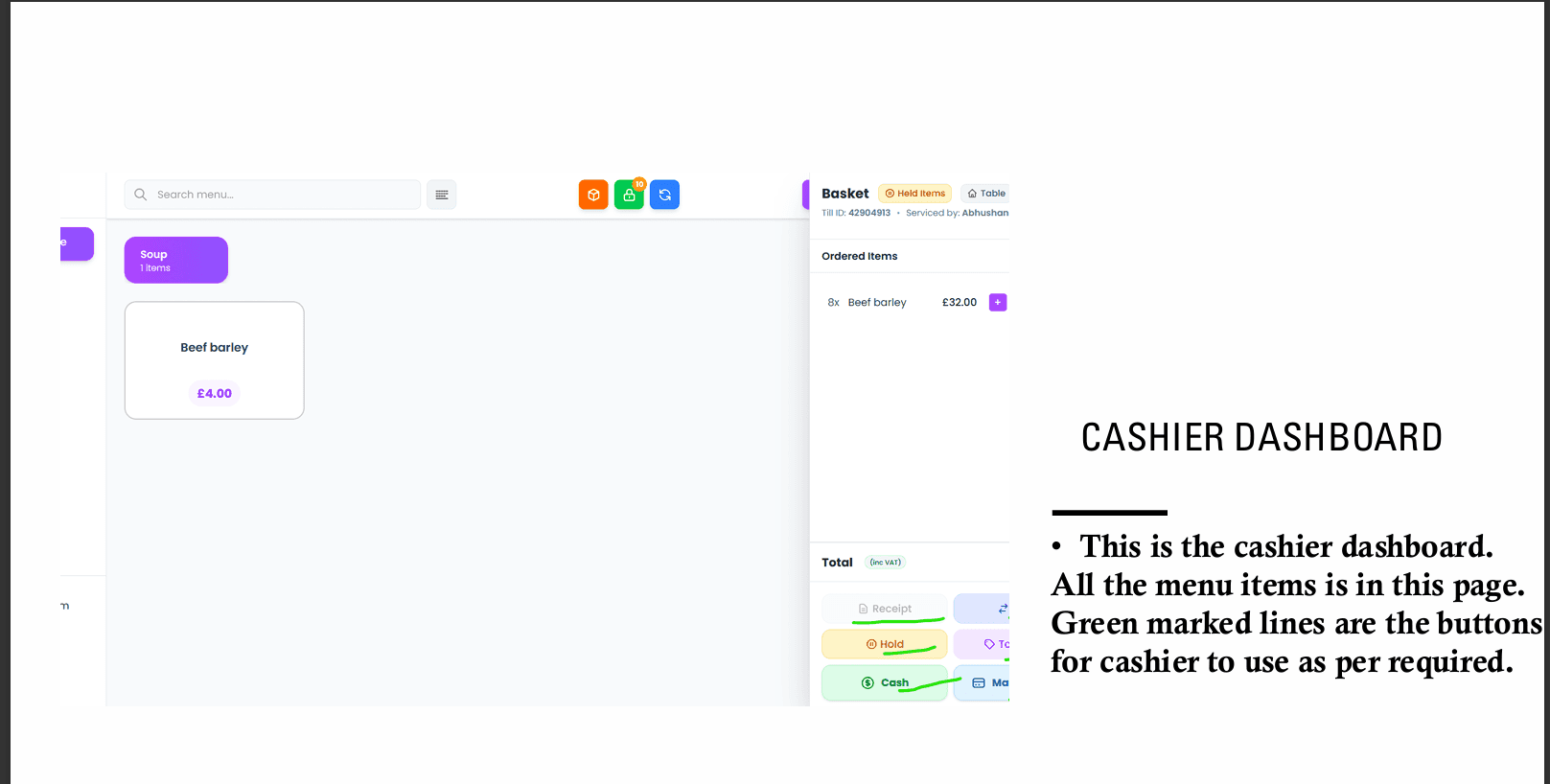
Once logged in, you'll see the main cashier dashboard. This is your workspace for the entire shift. On the left (or top on smaller screens), you'll see all your menu items organised by category. Tap any item to add it to the order. On the right, you'll see the current order (the "basket") with the items, quantities, and total. Along the bottom or top, you'll find action buttons: Receipt (print a receipt), Hold (put the order on hold for later), Cash (process a cash payment), Transfer (move items between orders), and Card (process a card payment). Use these as needed during each transaction.
Processing Cash Payments
When a customer is ready to pay in cash, use the Cash button. The system will show the amount due. You can then enter the amount the customer handed you (e.g., if the bill is £18.50 and they give you £20, enter 20). The system will calculate the change and show you exactly what to give back. Here's the full flow.
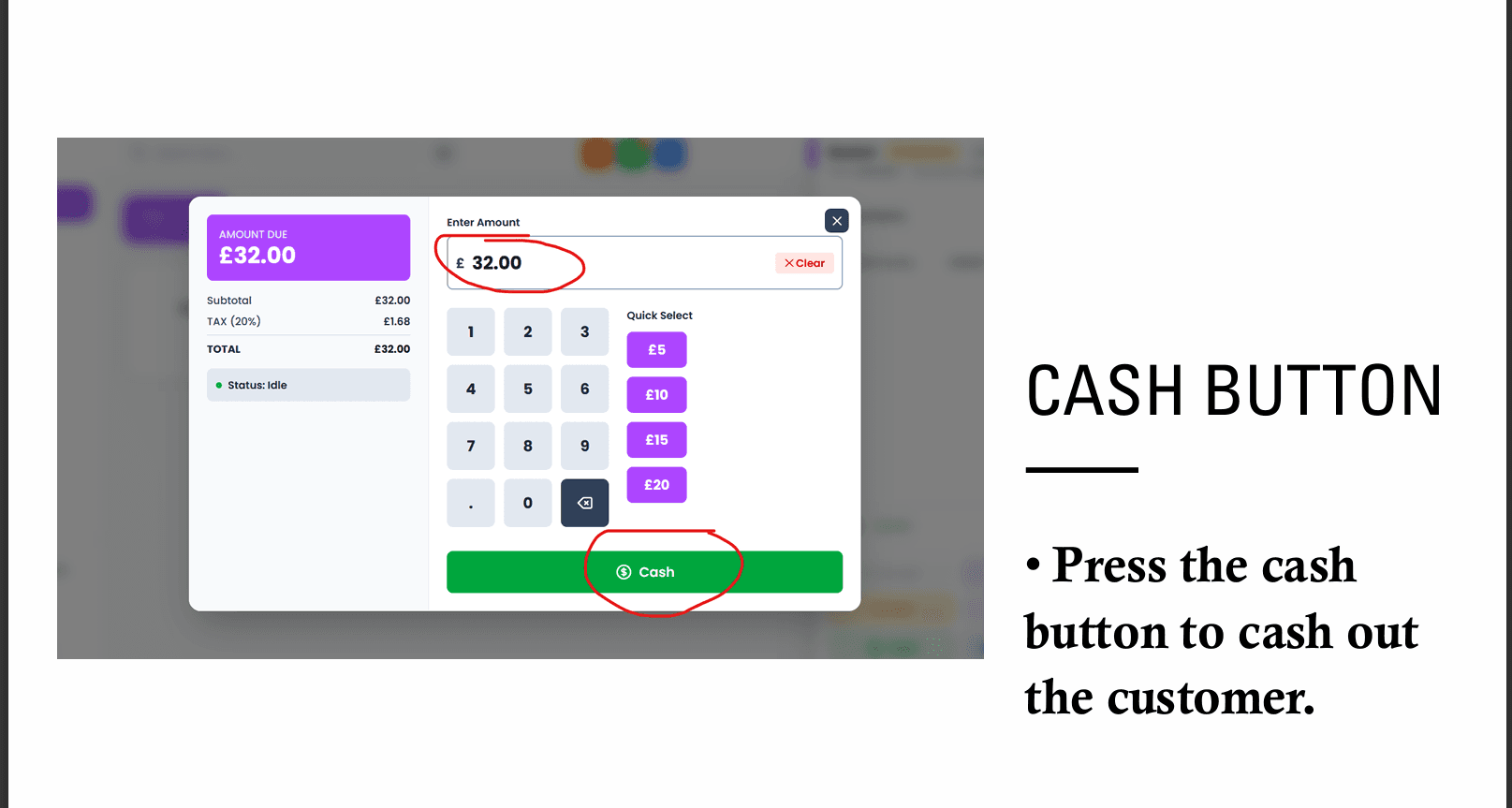
Press Cash and see the amount due
Make sure all items are added to the order. When the customer is ready to pay, press the green Cash button. The screen will display the amount due—the total for the order. There will be an Enter Amount field where you type the cash the customer gave you.
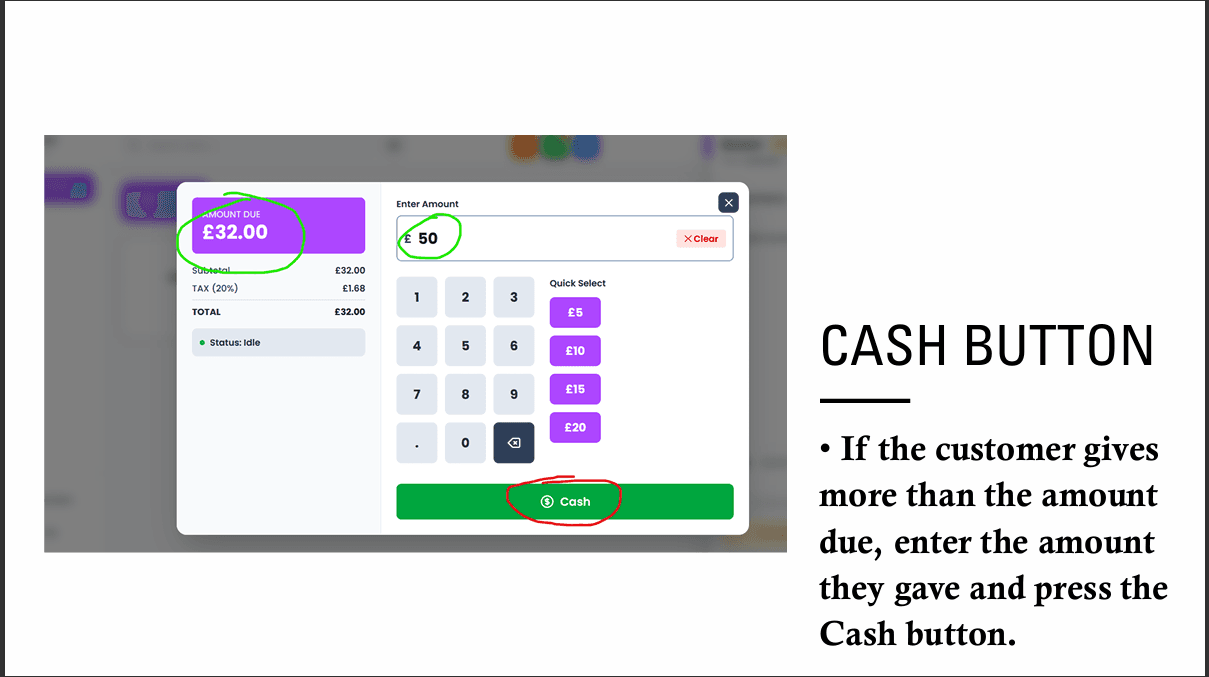
Enter the amount received and confirm
Type the amount the customer gave you. For example, if the total is £18.50 and they hand you £50, enter 50. Then press the Cash button again to complete the transaction. The system records the sale and calculates the change.
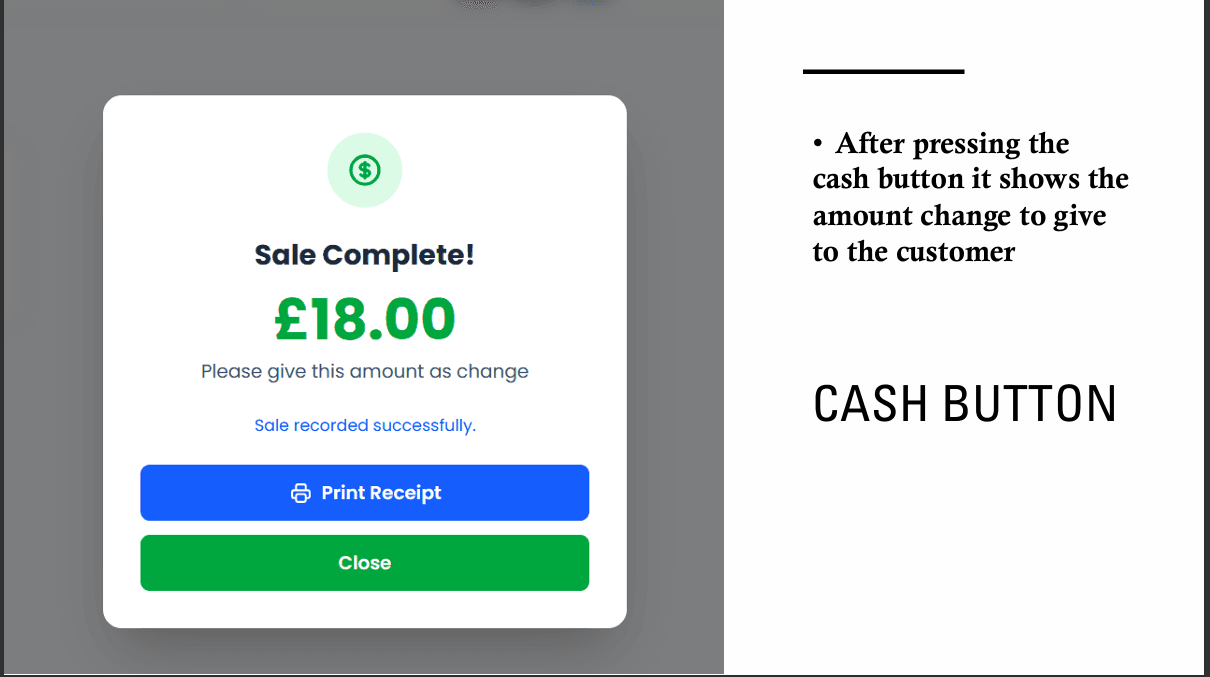
Give the customer their change and optionally print a receipt
After you press Cash, the screen will show Sale Complete! along with the change to give (e.g., £31.50). Give the customer their change from the till. You can then print a receipt for them using the print option, or close the dialog to start a new order.
Adding Manual Items
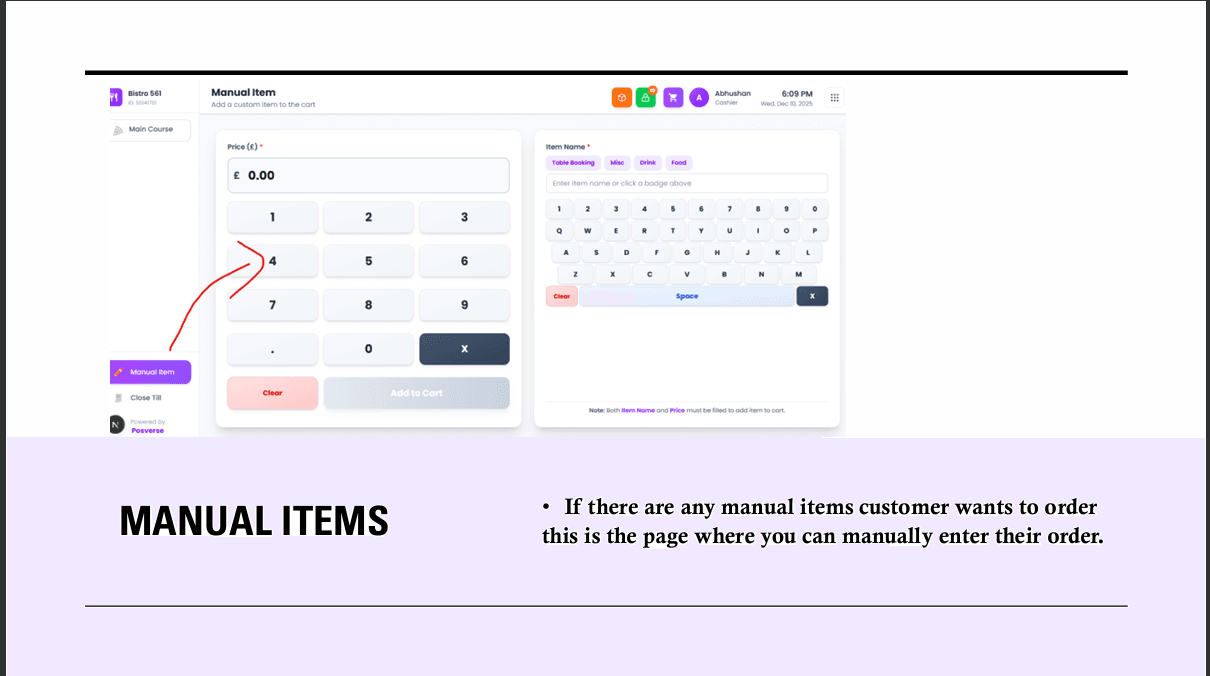
Sometimes a customer orders something that isn't on your regular menu—perhaps a special request, a one-off item, or something you haven't added to the system yet. In those cases, use Manual Item. This lets you add a custom item with any name and price directly to the order. Both the item name and price are required.
Open the Manual Item page (usually via a button or menu), enter the item name (e.g., "Extra napkins" or "Special combo") and the price, then press Add to Cart. The item will appear in the current order like any other menu item. You can add multiple manual items to the same order if needed.
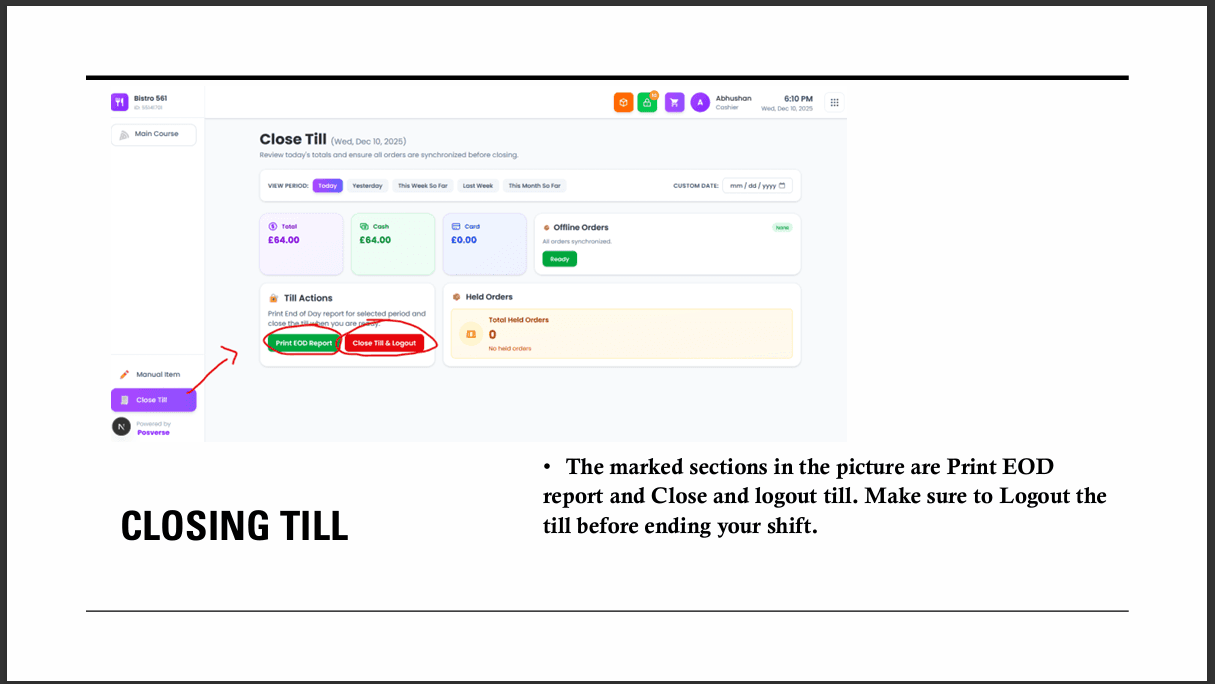
Closing Your Till
At the end of your shift, you must properly close your till and log out. This ensures your sales are recorded correctly and the till is ready for the next person. You can print an End-of-Day (EOD) report for the selected period—this shows a summary of sales, which is useful for your manager or for reconciling the till. Then press Close Till & Logout to end your session. Always log out before leaving; never leave the till logged in.
Important